Company Blog Strategy & Automation
Is It Safe to Let a Tool Auto-Publish to WordPress?
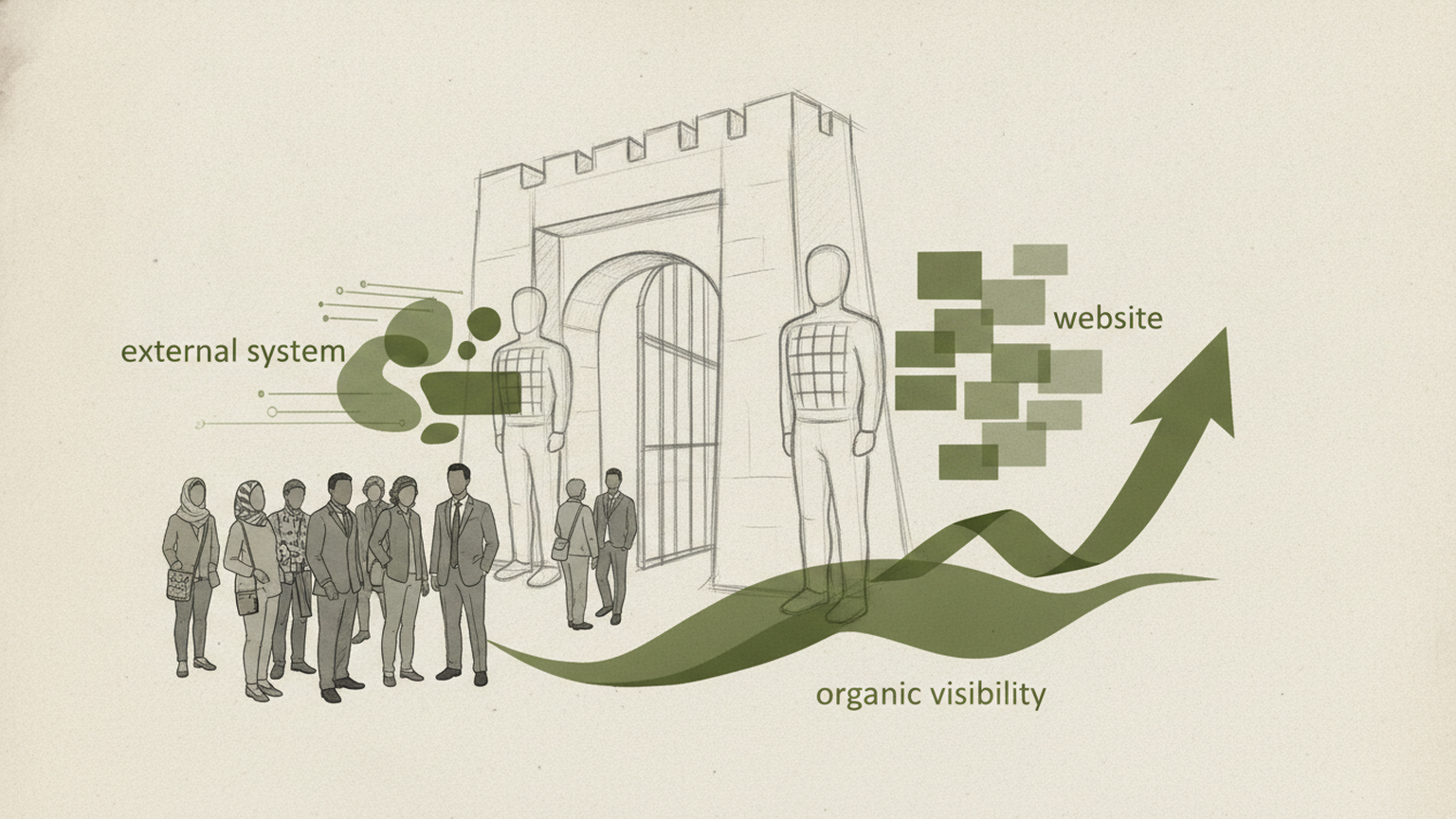
A publishing integration needs far less access than most people assume: the ability to create posts and upload media on one site, nothing more. The real risks are unreviewed content going live, credentials stored badly and theme conflicts — all of which are controlled by draft-first publishing, scoped application passwords and a revocable connection you can kill in one click.
Giving an external system write access to a live website is one of the few decisions in wordpress seo that can go wrong in a visible, public way. A broken layout on a product page, a half-finished draft indexed by Google, a credential leak that turns your blog into a spam farm: these are not paranoid scenarios, they are the normal failure modes of badly built integrations. The hesitation is justified, and anyone who answers it with “don’t worry, it’s secure” has told you nothing.
So let’s answer it properly. This article explains what an automated publishing tool actually asks for in technical terms, what each permission lets it do and what it cannot do, where things realistically break, and which controls separate a trustworthy connection from a reckless one. If you are building a publishing operation that has to survive for years rather than weeks — the logic behind a company blog strategy that actually lasts — then the connection layer is infrastructure, and infrastructure deserves a real review.
By the end you will know which questions to ask any vendor before you paste a credential, how to scope access so the blast radius stays small, and how to test the whole thing without exposing your production site on day one.
Contents
- What permissions does a WordPress publishing integration actually need?
- What can actually go wrong when a tool publishes to your live site
- What a trustworthy auto-publishing setup looks like
- How to test the connection without risking your production site
- Frequently asked questions
- The decision, in one sentence
What permissions does a WordPress publishing integration actually need?
Most automated publishing tools talk to WordPress through the REST API, the built-in interface that lets external software read and write content. Authentication normally happens with an application password: a credential generated inside WordPress, tied to one user account, that works only for API calls and can be revoked independently of the real login password.

That last detail matters more than it sounds. An application password does not give anyone the ability to log into your dashboard through the browser login form. It is a key for one door, and you can change the lock on that door without touching anything else.
The minimum viable scope
A tool that writes articles needs three capabilities: create posts, upload media for the featured and inline images, and read or create taxonomy terms so the article lands in the right category. That is the honest minimum.
What it should not need is the ability to install or update plugins, edit theme files, manage users, change site settings, or touch WooCommerce orders and customer data. If an integration asks for a full administrator account with no explanation, that is a question to ask out loud before proceeding.
Why the user account you choose matters
WordPress permissions attach to roles, not to the API. Connect through an Administrator account and the application password inherits administrator capabilities, whether the tool uses them or not. Connect through an Editor account and the same credential can publish content but cannot install code, modify settings or create new users.
Creating a dedicated user — something like “publishing bot”, with the Editor role and a real mailbox you control — costs two minutes and contains the damage of any future credential leak to the content layer. It also gives you a clean audit trail: every post created through the integration carries that author in the revision history, so you always know what came from automation and what a colleague wrote by hand.
The practical takeaway: before you connect anything, create a dedicated Editor user and generate the application password from that account, not from your own.
What can actually go wrong when a tool publishes to your live site
Validating the concern means naming the failure modes precisely. There are four that occur in practice, and each has a different fix.
Content going live without anyone reading it
This is the most common one, and it has nothing to do with security. A tool that writes and publishes in the same step means the first human to read the article is a visitor — or worse, a customer who notices the product described in a way your company would never phrase it.
The fix is structural, not editorial willpower: the integration must support draft-first delivery, where every article arrives in WordPress as a draft and a person moves it to published. Approval gates are the difference between automation and abdication. We’ve argued the point in detail in whether a human should always review AI articles before publishing, and the answer in an operational setup is yes, with the review step built into the pipeline rather than left to good intentions.
Credentials stored badly on the vendor’s side
An application password is a secret. If the service you connect to keeps it in plain text, or logs it, or replicates it across environments, your site’s security now depends on their internal hygiene rather than yours.
You cannot audit a vendor’s database from outside, but you can ask three concrete questions: is the credential encrypted at rest, can you revoke it unilaterally from your WordPress dashboard at any moment, and does the tool ever need the credential outside of the publishing call itself. The revocation answer is the one that protects you regardless of the other two — a credential you can kill in one click is a credential with a time limit you control.
Layout breaking because of theme and block conflicts
Content pushed through the API lands in your theme’s rendering. If the tool emits raw HTML that your blocks or page builder do not expect, headings can lose their styling, images can overflow the container, or the table of contents can collide with a sticky header.
Nothing here is dangerous, but it is visible. The mitigation is to publish the first few articles as drafts, preview them on desktop and mobile, and confirm that headings, images, tables and internal links render the way the rest of your blog does. A tool that writes standard WordPress blocks and clean semantic HTML will usually behave; one that injects inline styles or proprietary shortcodes will fight your theme forever.
Plugin interactions you did not anticipate
Security plugins sometimes block REST API requests by default. Caching layers may serve a stale version of the archive page after a new post appears. SEO plugins can overwrite the meta title and description the tool supplied, because they apply their own template rules.
None of this breaks the site, but all of it quietly degrades results if nobody checks. After the first automated post goes live, verify three things: the article is reachable at its URL, the meta title in the page source is the one you intended, and the post appears in your sitemap.
The takeaway for this section: the realistic risks are operational, and every one of them is caught by publishing the first batch as drafts and inspecting the output before you let the pipeline run unattended.
What a trustworthy auto-publishing setup looks like
Having named the problems, here is the shape of a connection you can defend in a security review.
A scoped connection, one site at a time
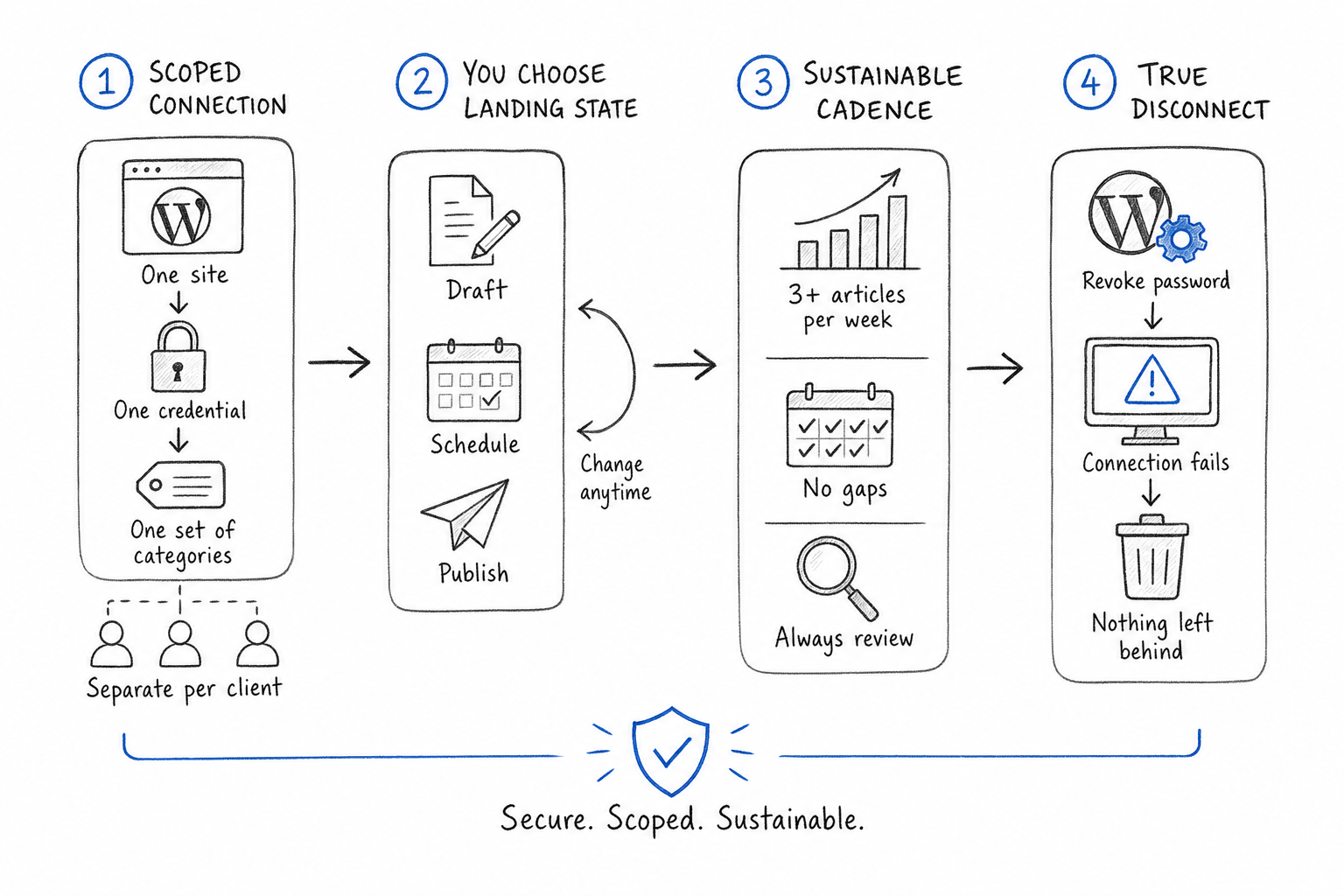
The integration should be configured per project: one WordPress site, one credential, one set of categories. A tool that asks for access to a whole multisite network, or that stores one credential reused across several of your properties, concentrates risk for no operational gain. Agencies running several client blogs should expect separate credentials per client, so that revoking one never affects the others.
Draft, schedule or publish — chosen by you
A mature tool lets you decide the landing state of each article. Draft-first while you build trust in the output, scheduled publishing once the quality is predictable, direct publishing only on content types where you have already seen dozens of clean results. The choice should be a setting, not a hard-coded behaviour, and you should be able to change it at any moment without rebuilding the connection.
This flexibility is what makes a real cadence sustainable. Owning a topic means publishing at least three articles a week, and up to one a day on broad themes, without gaps — a volume that no team sustains by copy-pasting into the editor by hand, and that no sensible team runs without a review step either.
A disconnect that genuinely disconnects
Test the exit before you need it. Revoke the application password inside WordPress, confirm the tool reports a failed connection rather than silently retrying, and check that nothing was left behind: no new users, no plugin installed without your knowledge, no scheduled posts queued to appear next week. A clean disconnect is the strongest single trust signal an integration can give you, because it proves the vendor never held more access than you granted.
Transparency you can verify in the page itself
If articles are produced with AI assistance, that should be stated in plain text on the page and marked in structured data, with the approval tracked on your side. Under the European AI Act, transparency about synthetic content is an obligation rather than a style choice — and in practice it is also a trust asset, because a reader who sees the disclosure and the review trail stops guessing. It is one paragraph of your workflow, and it removes an entire category of future doubt.
| Control | What it protects against | How you verify it |
|---|---|---|
| Dedicated Editor user | Full-admin compromise | Check role in Users panel |
| Application password | Password reuse, browser login | Revoke it and retest |
| Draft-first mode | Unreviewed content going live | First 5 posts arrive as drafts |
| Per-project credential | Cross-site blast radius | One key per WordPress site |
| Clean disconnect | Lingering access | No residual users or plugins |
Run that table as a pre-flight check and the conversation with your IT lead becomes short.
How to test the connection without risking your production site
The safest first test is not on your main domain. If you have a staging environment, connect there, let a few articles arrive, inspect how they render, then replicate the configuration in production with a fresh credential.
If staging is not available — common for smaller teams — the next best approach is a contained production test: a dedicated Editor user, draft-first mode, one category that is not linked from your main navigation, and a manual review of every article for the first two weeks. You get real rendering conditions with zero published surface area.
Watch three signals during that window. First, rendering fidelity: do headings, images and internal links look like the rest of your blog on both desktop and mobile. Second, editorial fit: does the content actually describe what you sell in terms you would use with a prospect. Third, operational noise: any plugin warning, failed request or duplicate post is worth investigating now, while volume is low.
A free trial is the cheap version of this test. You see the wizard, the permissions requested and the first articles before any commitment, which is exactly the order in which those things should be evaluated.
Frequently asked questions
Does auto-publishing to WordPress hurt my SEO?
Publishing method has no direct effect on ranking. Search engines evaluate the page, not the API call that created it. What does hurt is unreviewed, thin or duplicated content reaching the index. Keep draft-first review for the first weeks, confirm titles and meta descriptions render correctly, and the automated route performs exactly like manual publishing.
What is a WordPress application password?
It is a credential generated inside WordPress, tied to a single user, that authenticates REST API requests only. It cannot be used to log in through the browser form, and you can revoke it at any time from the user profile without changing the account’s real password. It is the standard way to connect external publishing tools.
Should I give the tool an Administrator account?
No. An Editor account can create, edit and publish posts, upload media and manage categories, which covers everything a publishing integration needs. Administrator adds plugin installation, theme editing, user management and settings access that no content tool requires. Create a dedicated Editor user and generate the application password from there.
How do I revoke access if something goes wrong?
Open the WordPress user profile linked to the integration, find the application passwords section and delete the relevant entry. Access stops immediately on the next API call. Then check that no unexpected users, plugins or scheduled posts remain. Test this procedure once before you rely on the connection in production.
Can an automated tool break my theme or layout?
It can produce content your theme renders badly, usually when the tool emits proprietary shortcodes or inline styles instead of standard blocks and clean HTML. It cannot modify theme files if the connected account lacks administrator rights. Preview the first few articles on desktop and mobile to confirm headings, images and tables render correctly.
Do I have to disclose that articles were written with AI?
Transparency about AI-generated content is required under European rules, and it is straightforward to satisfy: a plain-text note on the page, machine-readable marking in structured data, and a record of who approved the article. Treat it as part of the publishing workflow rather than an afterthought, and it costs nothing in reader trust.
Can I keep writing some articles manually?
Yes. The integration creates posts through the standard API, so manual drafts, editorial calendars and existing plugins continue to work unchanged. Many teams run a mixed model: automated coverage for recurring questions and supporting topics, hand-written pieces for announcements, opinion and anything requiring internal data.
The decision, in one sentence
Connecting an external tool to WordPress is safe when access is scoped to one site through a dedicated Editor account, content arrives as a draft until you trust the output, and you can revoke the credential yourself in one click — three conditions you can verify in an afternoon. If you want to see what that connection flow looks like in practice before committing anything, the step-by-step setup is documented here, and the free trial lets you run the whole test on a staging site or a quiet category first.
This article was produced and published automatically with the help of artificial intelligence.
Start today
A blog like this, on your site
This article was written and published by RankGrove, with the method you read about on the site. Try it free on your WordPress: the first article lands in your drafts within ten minutes.
Start free trial